If your project management system still is leaving dozens of tabs open to remind you to do things...this one's for you.
The Korgi Clipper Chrome Extension makes it fast, easy, and powerful to build central boards for funding opportunities, research teams, timeline building, and much more – on Chrome, Edge, and other browsers that are compatible with Chrome Extensions. Reopen the Chrome browser now to see the familiar cork-colored icon transform to colorful "electric Korgi" in the updated version!
You already know the downsides of task-management-by-browser-tab:
- The browser crashes and you lose – or have to try to reconstruct – all those open tabs.
- You close the multiple windows of tabs in the wrong order – and a forgotten window, with one unimportant tab, is the only one the browser reopens when you restart.
- You keep opening new tabs – and it's too overwhelming to go back through them all to see which one you can close.
- You spend each day revisiting each open tab to remember what it was you were supposed to do.
- You try a tab manager to reduce visual overload – how about groups? vertical panels? – but it doesn't reduce the dozens of tabs you have to review.
- You never close any windows or tabs so you can't lose anything – and your computer runs incredibly slowly because browsers can eat up a lot of processing power and memory.
The Korgi Clipper solves this. Install the Korgi Clipper Chrome Extension to instantly send those web pages and links back to an organized Korgi board – as to-dos, research, bookmarks, and even Google Calendar events. Organize them as you send to specific boards, or send them all to one to review and move from there.
Here's a 30-minute time block to finally close your tabs:
- Install Korgi Clipper from the Chrome Extension Webstore.
- Pin the Korgi Clipper icon to your browser toolbar for easy access.
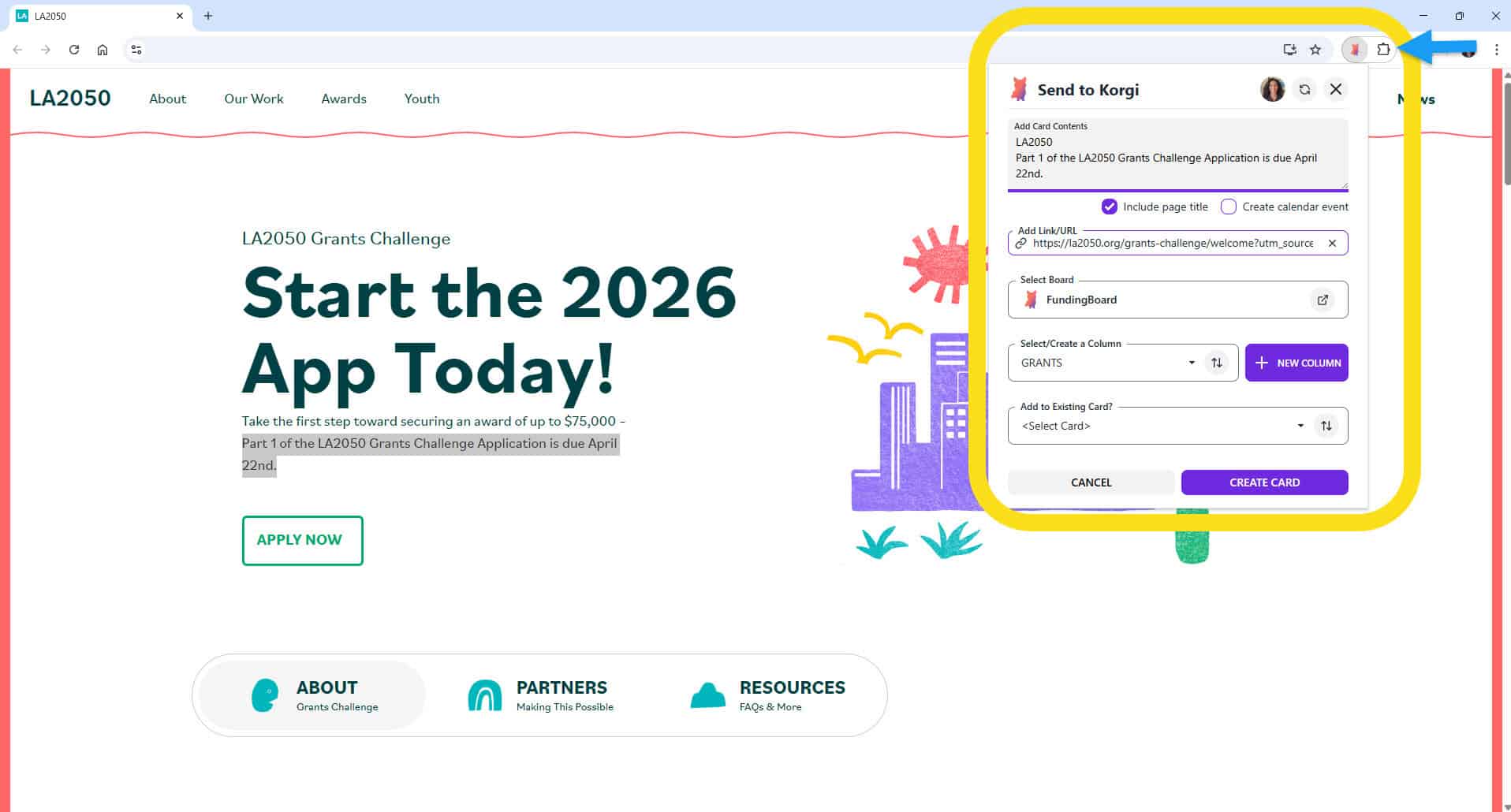
- Start with the very first tab and select the Korgi Clipper icon to send the tab to a board:
- Edit the card contents – or uncheck "Include page title" to remove the page title.
- Select the board and column to send the card and page link to – or create a new board or column.
- If you want to add the link to an existing card, Select "Add to Existing Card?" and select that card.
- Select Create New Card or Add New Card button.
- Select View Board to open the board and card, or close the dialog.
Move tab by tab and organize as you go. When you're done, right-click the last tab and select "Close Other Tabs" from the menu. If you have other browser windows open with multiple tabs, clear those next.
On your mobile phone, Android users now can send web pages to Korgi boards, too! First, install the Korgi web app on your phone:
- Open Korgi in the Chrome browser app.
- Select the "three dots" context menu, top right.
- Select "Install."
- Optionally, you may also choose to add Korgi to your phone's Home screen.
Once Korgi is installed, open any website you want to send to a board. Select the "three dots" context menu then the "Share" option. To view all share destinations, you may need to select "More." Select the Korgi icon, and the Korgi Clipper menu appears. Follow the steps above to modify your card contents, if desired, then select your desired board, column, and card (optional) to send the information to.
It's time. Stop jumping through tabs. Start getting things done.