Korgi recently added the ability to filter your boards by card color and by card assignee. When you need to get deeply focused:
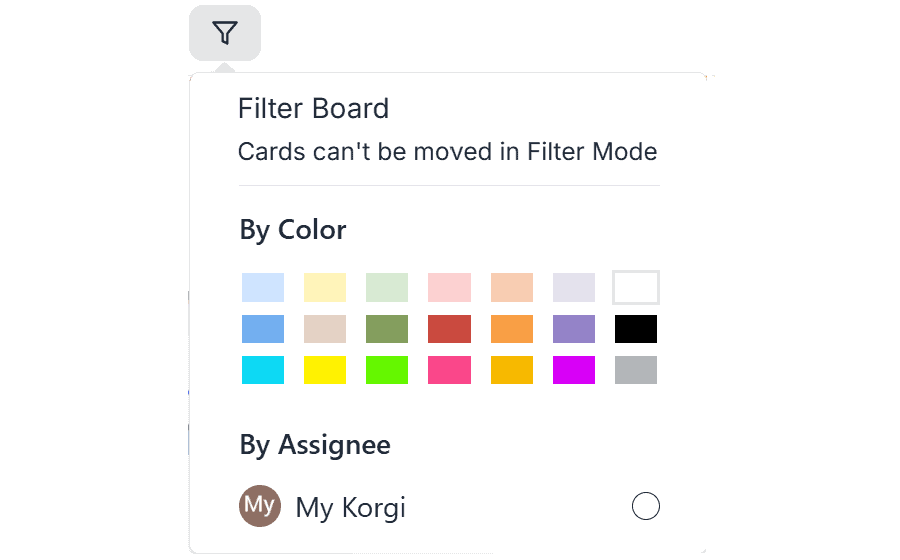
- Select the filter (funnel) icon in your board's top navigation bar.
- Filter by color. Select a single color in the palette. The board will display only cards of that color. If a column doesn't have any cards of that color, the column will collapse.
- Filter by assignee. Select one or more listed assignees. The board will display only cards that have been assigned to the selected board collaborator(s). If a column doesn't have any cards assigned to the selected collaborators, the column will collapse.
REMINDER: to change the color of a card, open its "drawer" (select the three dots on the bottom left of any card), then select the color palette icon in the first row to view and select a color. To assign a card to a board collaborator, open its "drawer" (select the three dots on the bottom left of any card), hover over the Google Contacts icon in the second row, then select the assignee from the list of board collaborators that appears.