To make managing your projects and processes even easier, App View is now the default layout for all Korgi boards.
With dedicated tabs along the bottom – Board, Chat/Notes, Gmail, Calendar, Files, Contacts, and Gallery – your board transforms into a focused, self-contained mini-app for your project.
App view now is the default view for your Korgi boards
How Do I Add Items to My App?
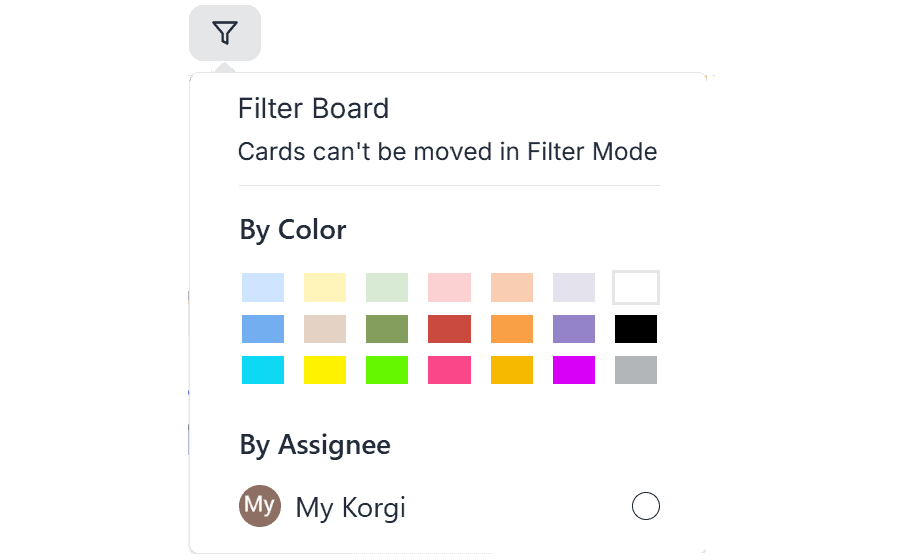
To connect and display existing Google Workspace items in your mini-app, on the bottom right of the screen, select the "funnel" (filter) icon. Then select the "diamond+" icon to the right of any item and "Save to App" (or select "diamond-" to "Remove from App"). You also can create new items by selecting the large plus icon on the bottom right of a tab.
[Video displays a screen with a "No Gmail results" notice. A mouse selects a filter icon on the screen, displaying a list of Gmail, then selects a plus icon next to one Gmail, then selects "Save to App" in the dialog that appears, then selects the filter icon which displays only that Gmail in the list. The mouse selects the minus icon next to that Gmail and selects "Remove from App." The screen displays the "No Gmail results" notice again.]
Prefer the Classic Board View?
If you prefer viewing your board without tabs, open board Settings (gear icon, top right on desktop), select "App View" at the bottom, then "Auto" to display tabs only in mobile, or "Always Off" to disable tabs completely:
[Video displays a Kanban board. A mouse selects a gear icon for Settings, which opens a dialog, which is scrolled to a section labeled "App View Beta," where an "Always On" radio button is pre-selected. The mouse toggles between three options: "Auto," "Always On," and "Always Off." The mouse then selects "Auto" and Save. The dialog closes.]